Lesson 2: Hello world
Now we have a better idea of what Eleventy is and have the tools we need to get started, let’s make something that we can see in the browser.
We'll start by adding one of the most important files for the project: the Eleventy configuration file.
Create a new file in your eleventy-from-scratch folder called eleventy.config.js and add the following to it:
export default function (eleventyConfig) {
	eleventyConfig.setInputDirectory('src');
	eleventyConfig.setOutputDirectory('dist');
}
This is our Eleventy config file. It's the beating heart of your Eleventy site. It delegates and instructs everything that makes up the final output.
What we've just added is the core, most basic config. We have defined a default export, a function where the argument eleventyConfig provides access to Eleventy's configuration API. These settings tell Eleventy to look in the src/ folder for our input content, templates and other source code, and tell it to use dist/ as the output folder.
Remember: the output will be folders and HTML pages (at the moment).
Adding some dependencies
We’ve chatted a lot about Eleventy so far, but still haven’t even installed it!
First, though, we need to get ourselves a package.json file — Node.js's standard project metadata file. It also allows tools such as npm, Node.js's default package manager, to handle dependencies.
We'll create the package.json in our eleventy-from-scratch folder and add the following to it:
{
	"scripts": {
		"start": "eleventy --serve",
		"build": "eleventy"
	},
	"type": "module"
}
This package.json file does two things. First, "type": "module" gives our package the module type so that Node knows to parse it as an ES module (the most standard format for JavaScript modules, as opposed to the older CommonJS). Second, the start and build scripts give us more convenient ways of running Eleventy (more on that in the next section).
Now that’s sorted, we can install Eleventy using the npm package manager. In the terminal, run the following command:
npm install @11ty/eleventy@v3We’ve installed Eleventy locally in our project. Let’s make it do something!
You might have noticed that the install command specified the @11ty/eleventy@v3 package. The format here is name@version, which requests v3 of the @11ty/eleventy package. We’ll use this technique to pin dependencies to specific versions throughout this course so that the instructions continue to work regardless of future changes.
Hello, world
In your eleventy-from-scratch/src folder, add a new Markdown file called index.md and add the following to it:
Hello, worldYes, that’s pretty uneventful, but let’s now put Eleventy to work. Make sure you've saved your changes in your text editor. Then, in your terminal, in the eleventy-from-scratch folder, run the following command:
npx @11ty/eleventy --serveThis command uses the npx program, a part of the npm command-line interface. npx enables us to run a command from a local or remote npm package. In this case, we use the program from the package @11ty/eleventy, which will work whether or not we have Eleventy installed locally in our project! When within the project folder with Eleventy already installed, we can shorten the command to call the eleventy program directly: npx eleventy --serve.
If you go to http://localhost:8080 (the default port for Eleventy) in your browser, it should look like this:
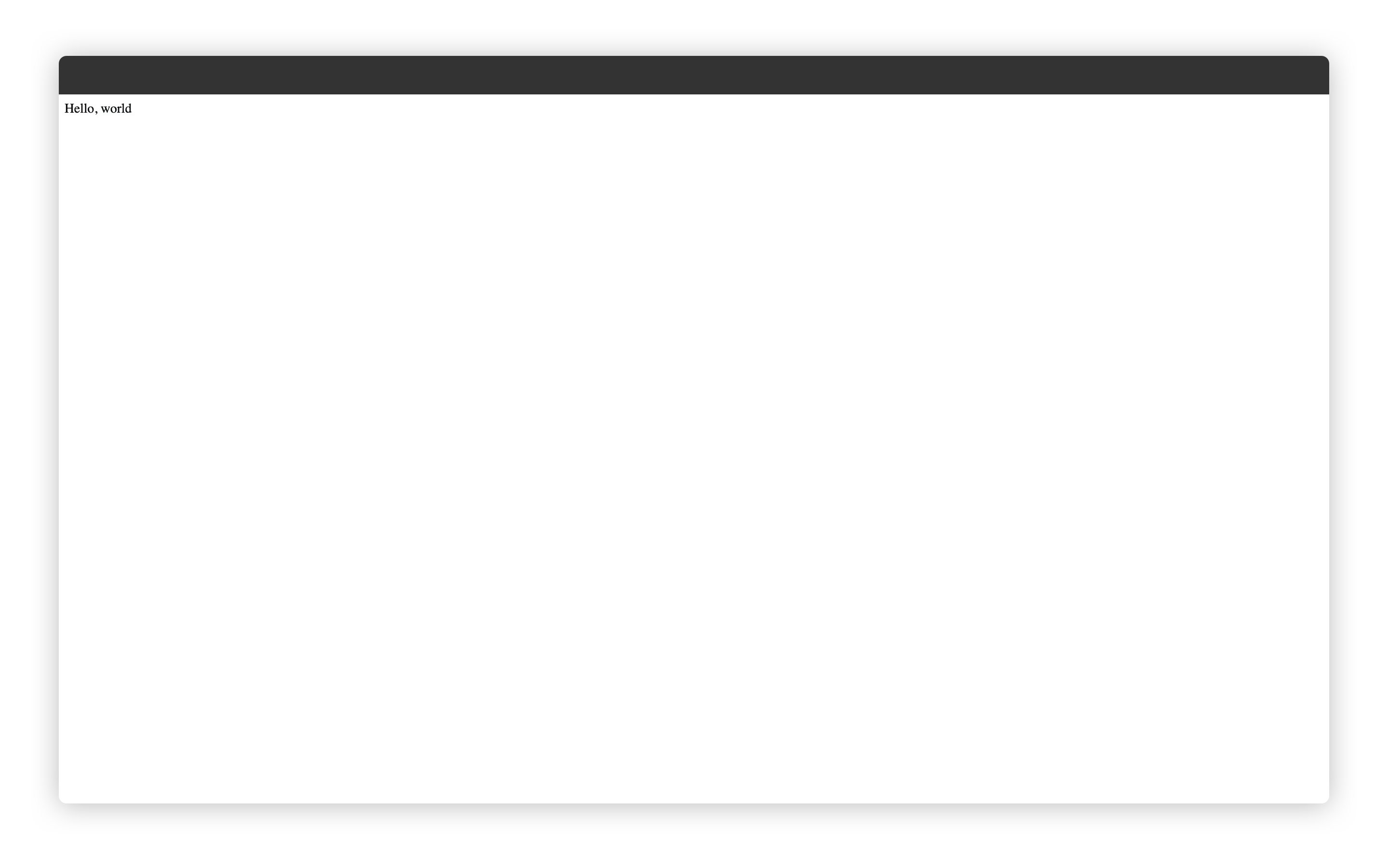
The --serve flag in our terminal command instructs Eleventy to serve the output folder of our site to a local web server and also watch for any file changes. This means that if you change the content of index.md and refresh your browser, you should see the new content.
Pretty cool, right?
Setting up our scripts
Running npx eleventy --serve in the terminal is easy enough, but it would be even easier to just run npm start instead. To do this, we use npm scripts.
In our package.json file, we already added a line containing "start": "eleventy --serve". Instead of writing out the command npx eleventy --serve in our terminal to run Eleventy each time, we can use this npm script to run npm start with the same effect.
The start script is a special one. It’s a default script that npm will run if you just run npm start in the terminal. There are a few others, such as restart, stop and test. You can read more about them in the npm docs.
Any non-standard scripts you add to your package.json file can be run with npm run followed by the script name. For example, if you had a script called build, you could run it with npm run build. The special scripts can also be called with npm run: npm run start works just fine.
Open your terminal again. Press Ctrl + C at the same time to stop it, then run npm start. It should fire up that same “Hello, world” page at http://localhost:8080.
Wrapping up
We’ve achieved a lot in this lesson. We’ve installed Eleventy and got it up and running in an npm script. We’ve also added our first piece of content to the site which will become our home page.
Next up: we’re going to start digging into HTML and Nunjucks, which will suddenly start to make things really interesting.